The dashboard. What an owner sees.
Every OnMap.me page comes with a dashboard. These are its real screens, shown with the demo account: Lark Coffee is an example business and its numbers are sample data.
Overview
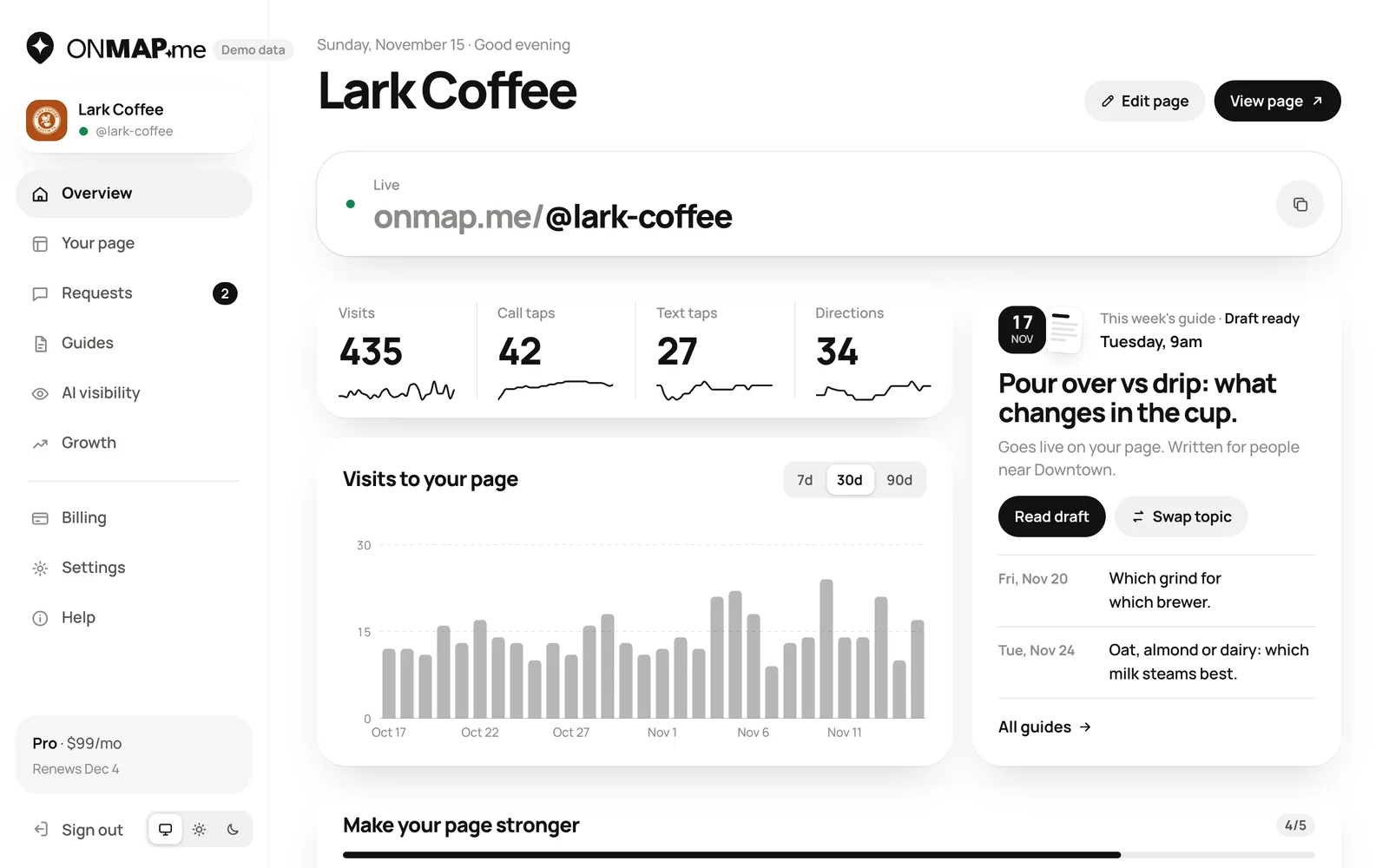
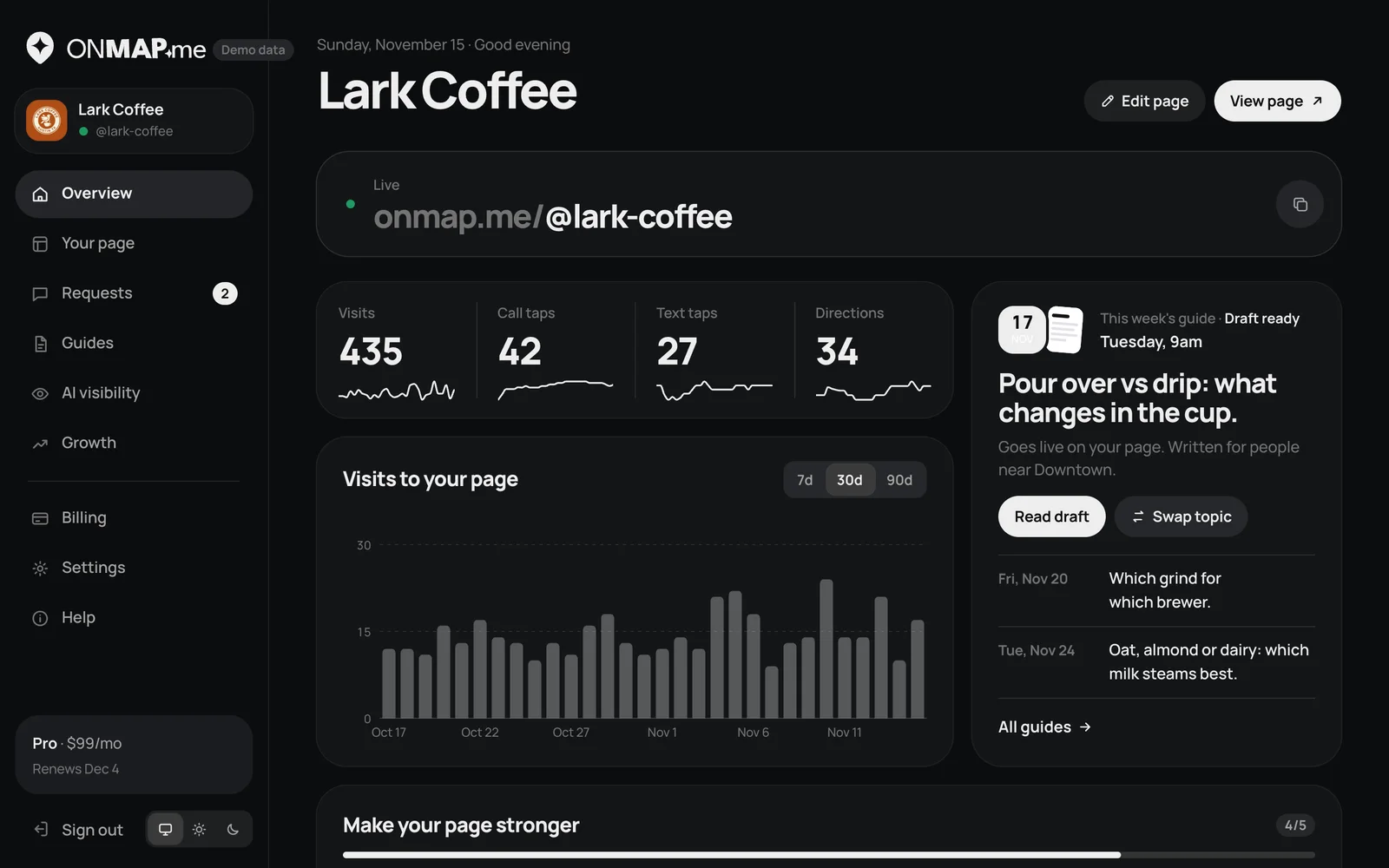
The first screen after sign-in. It shows the page's address, how many people visited it and how many tapped Call, Text or Directions.
- See visits by 7, 30 or 90 days
- Read this week's guide before it goes live, or swap its topic
- Follow a short list of what would make the page stronger
Your page
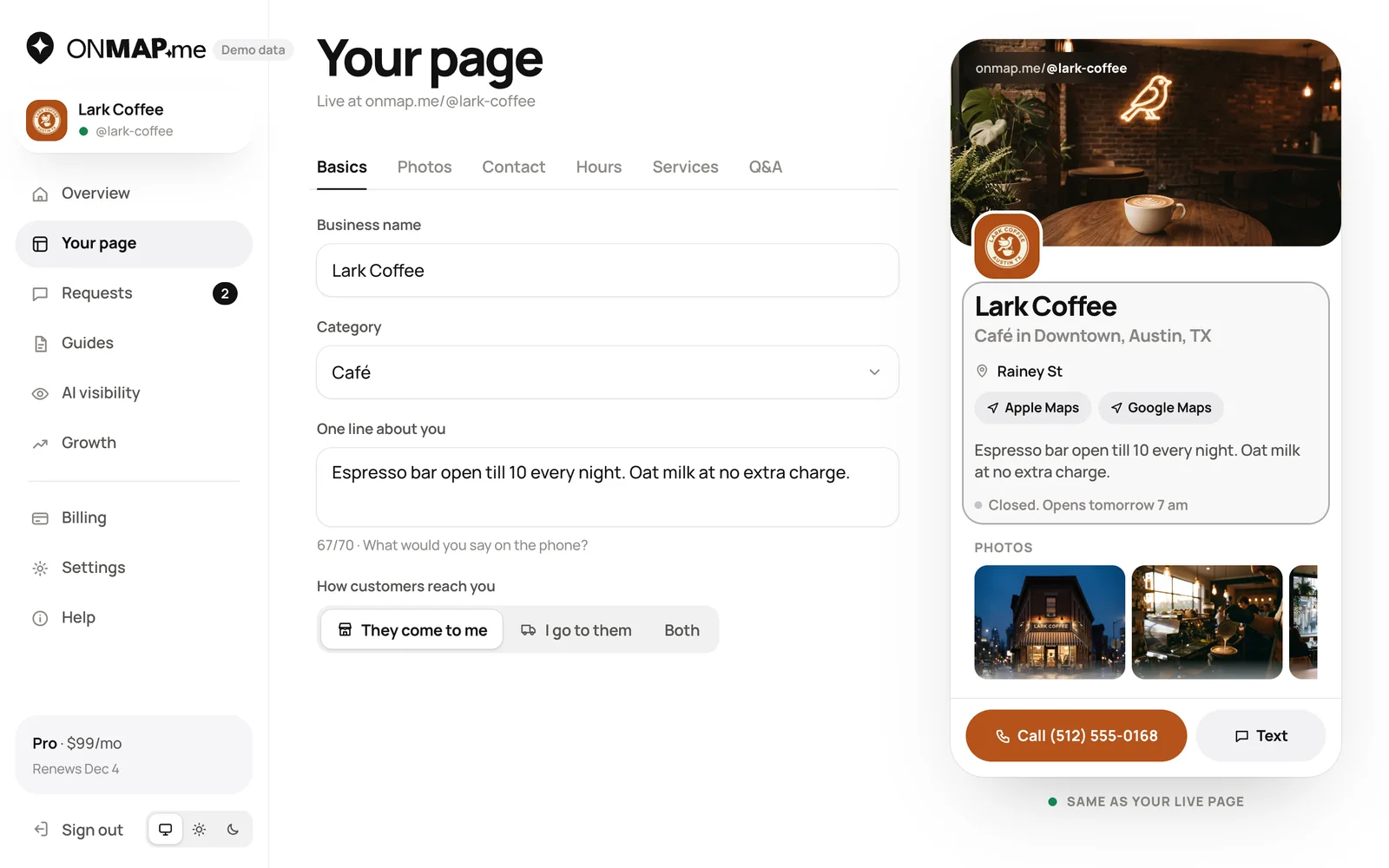
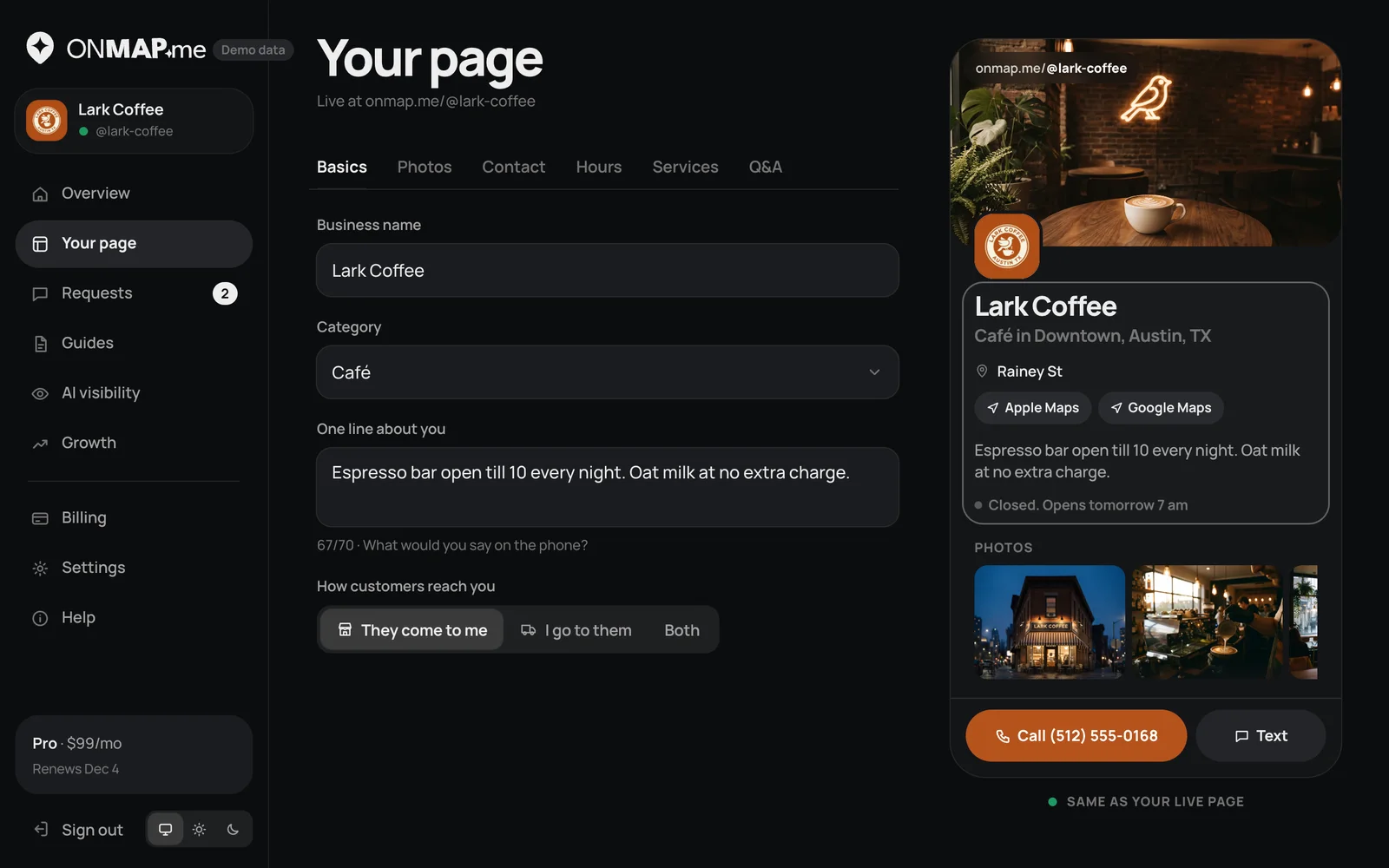
Everything on the public page is edited here, with a live preview beside it that matches the page exactly.
- Name, category and one line about the business
- Photos and logo, each with a described alt text
- Phone, address or service area, opening hours
- Services with prices, and questions with answers
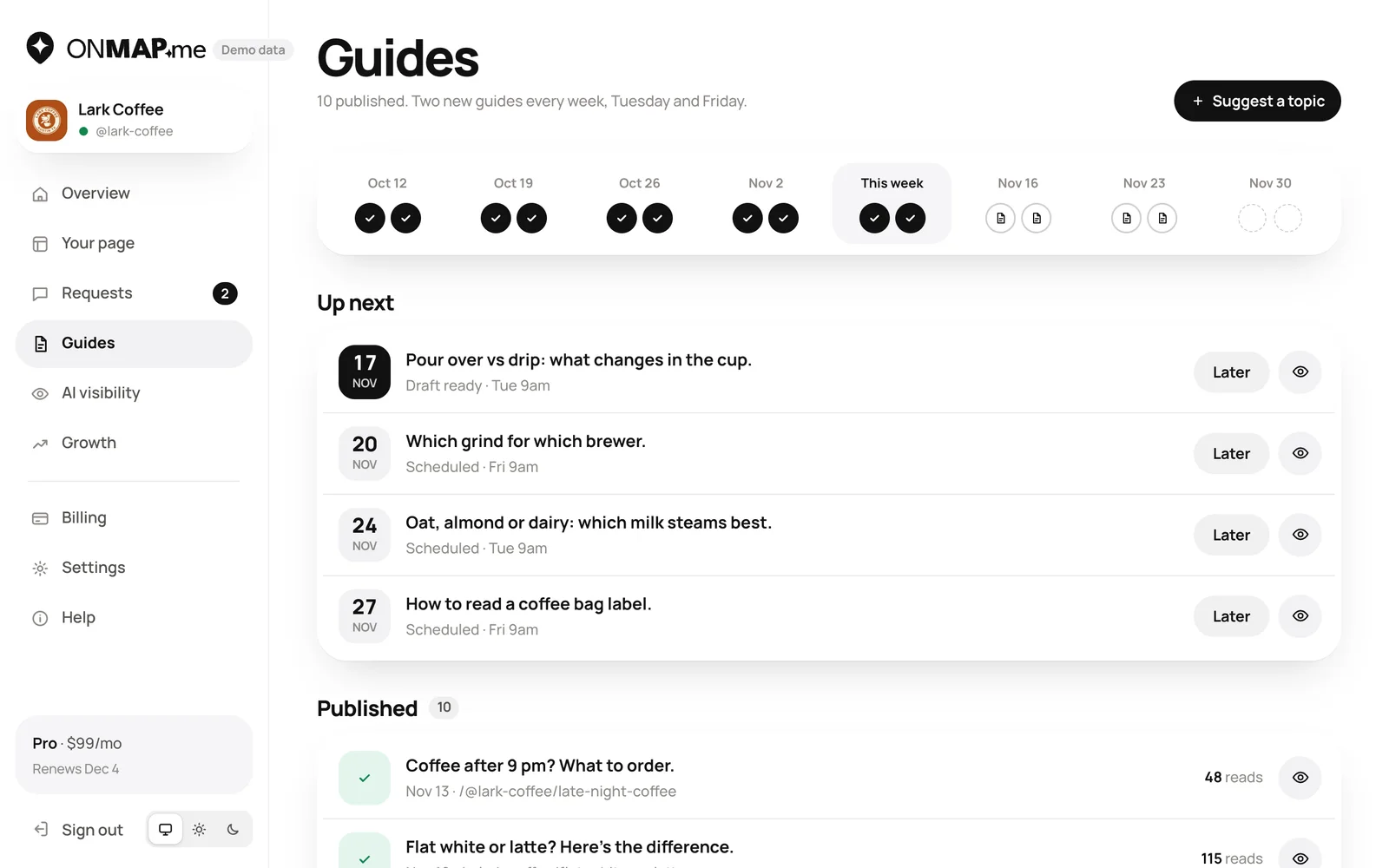
Guides
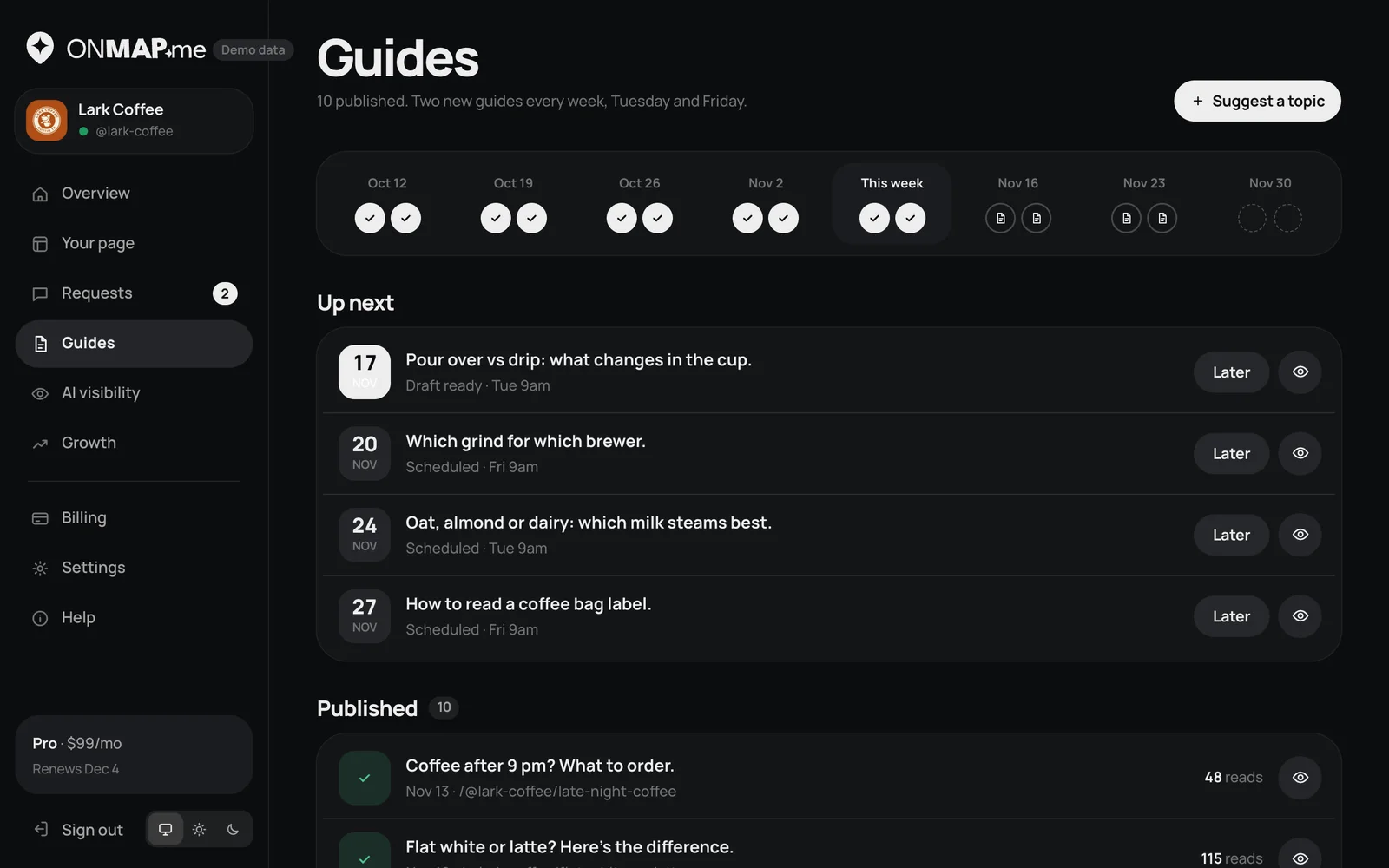
Short local how-tos that are added to the page every week, each answering one question people nearby ask. Basic gets one a week, Pro gets two.
- See what is scheduled and read each draft before it publishes
- Push a guide to later, or suggest a topic
- See how many times each published guide was read
AI visibility
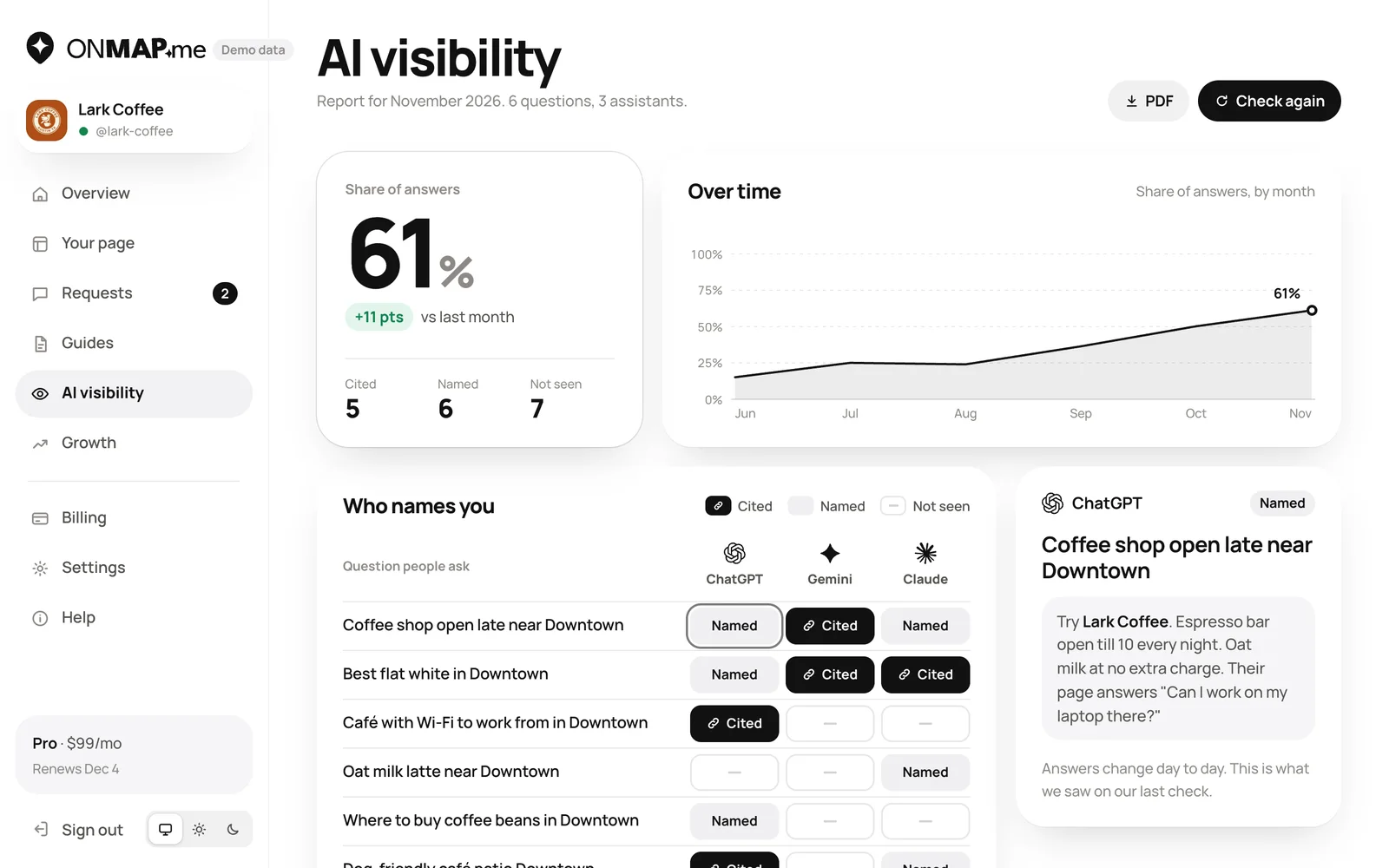
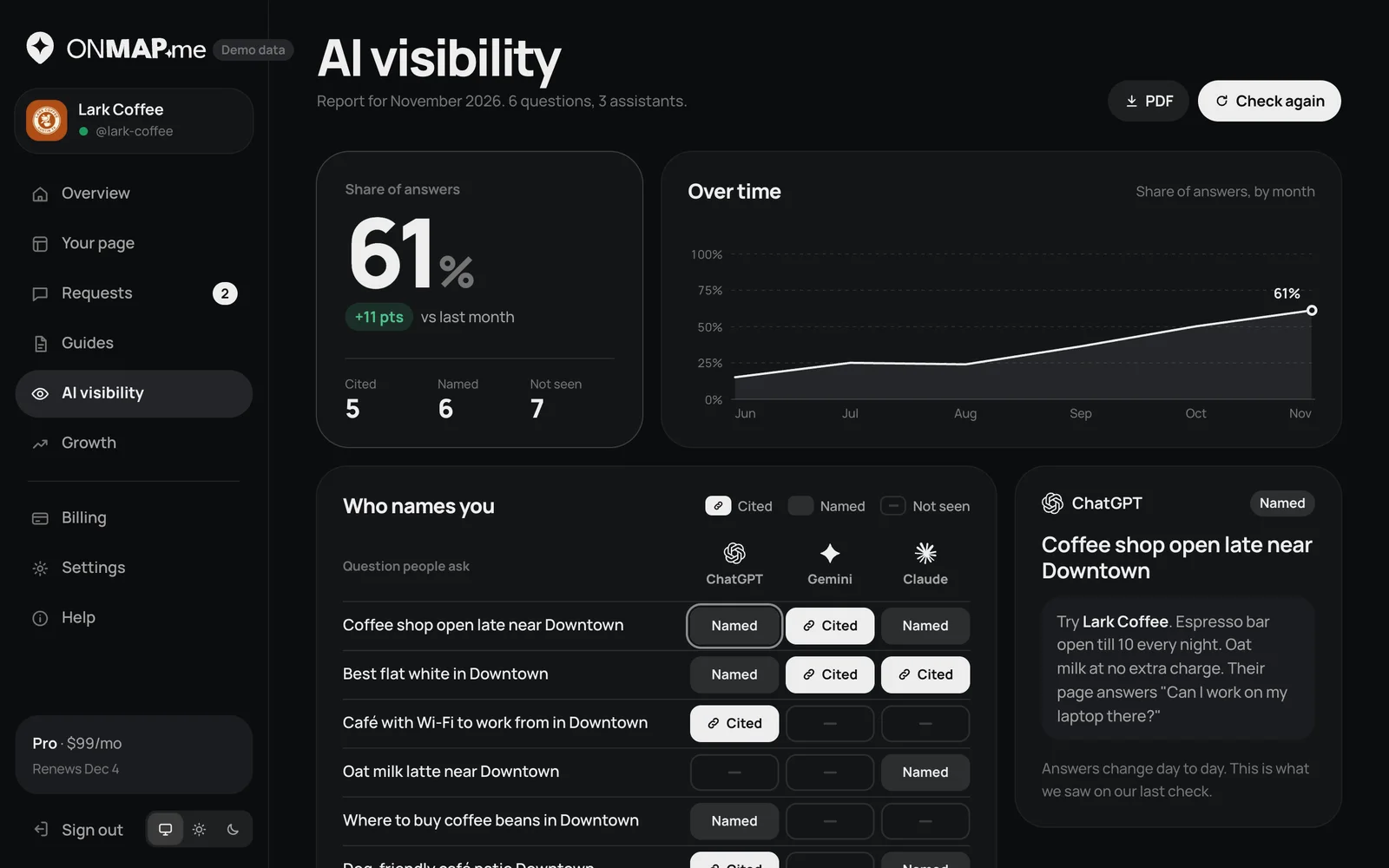
A monthly report: the questions people ask about this kind of business nearby, and whether ChatGPT, Gemini and Claude named the business, cited its page or did not mention it.
- See the share of answers that named the business, month by month
- Open each question to read what the assistant answered
- See which crawlers read the page
- Run the check again, or save the report as a PDF
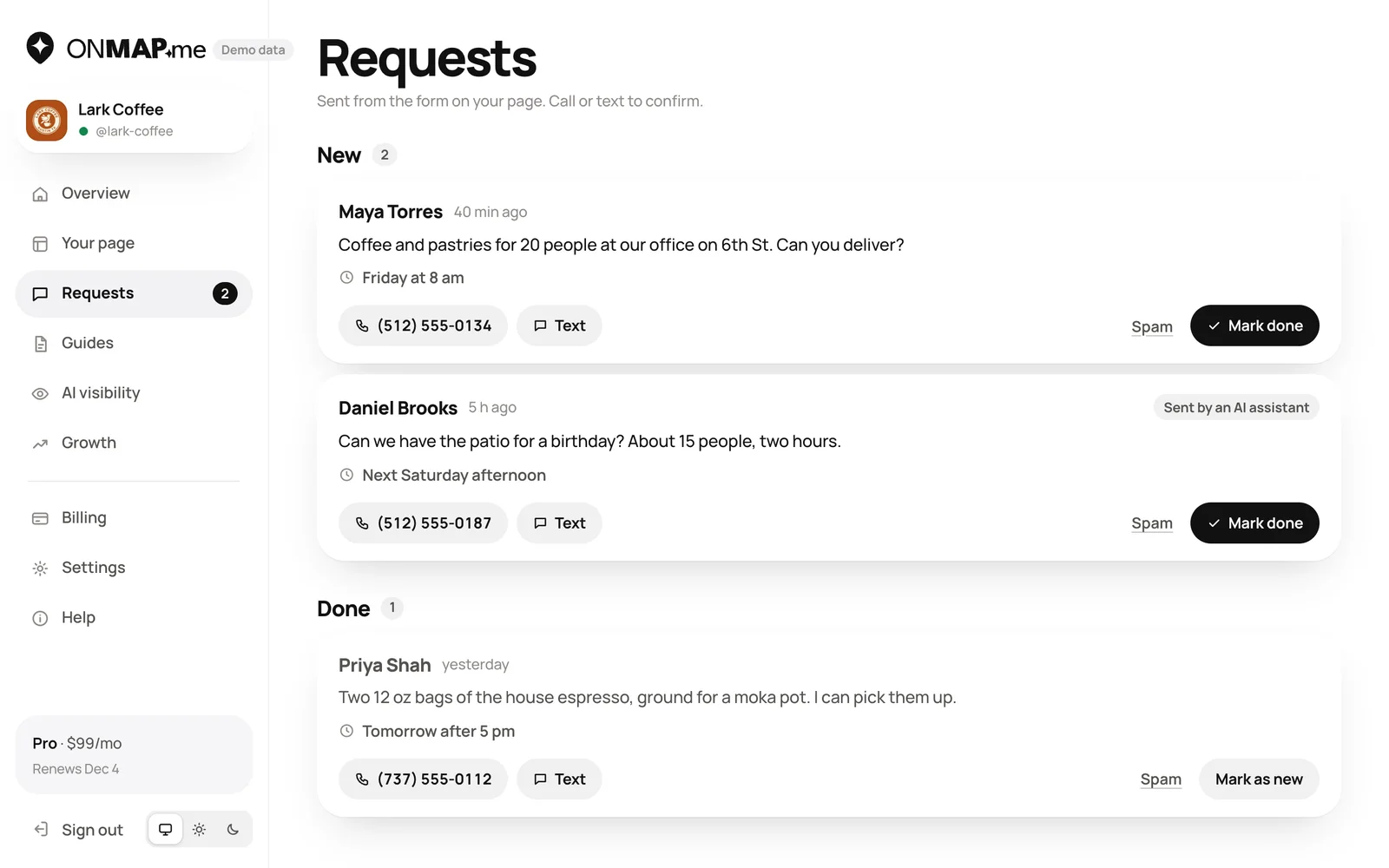
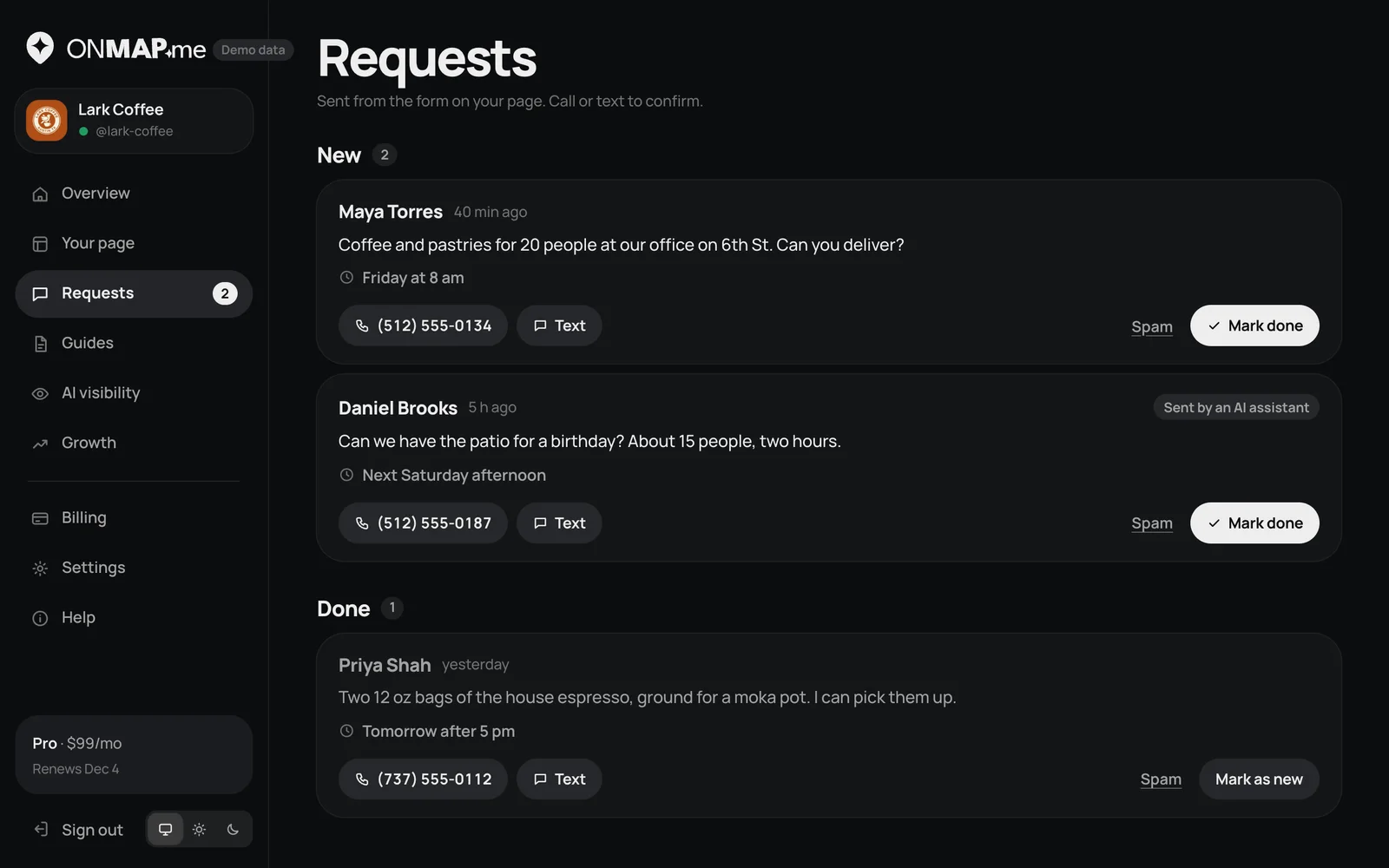
Requests
Messages sent from the form on the page: an order, a booking, a question. A request an AI assistant sent on someone's behalf is marked as such.
- Call or text the person back with one tap
- Mark a request done, or mark it as spam
Growth
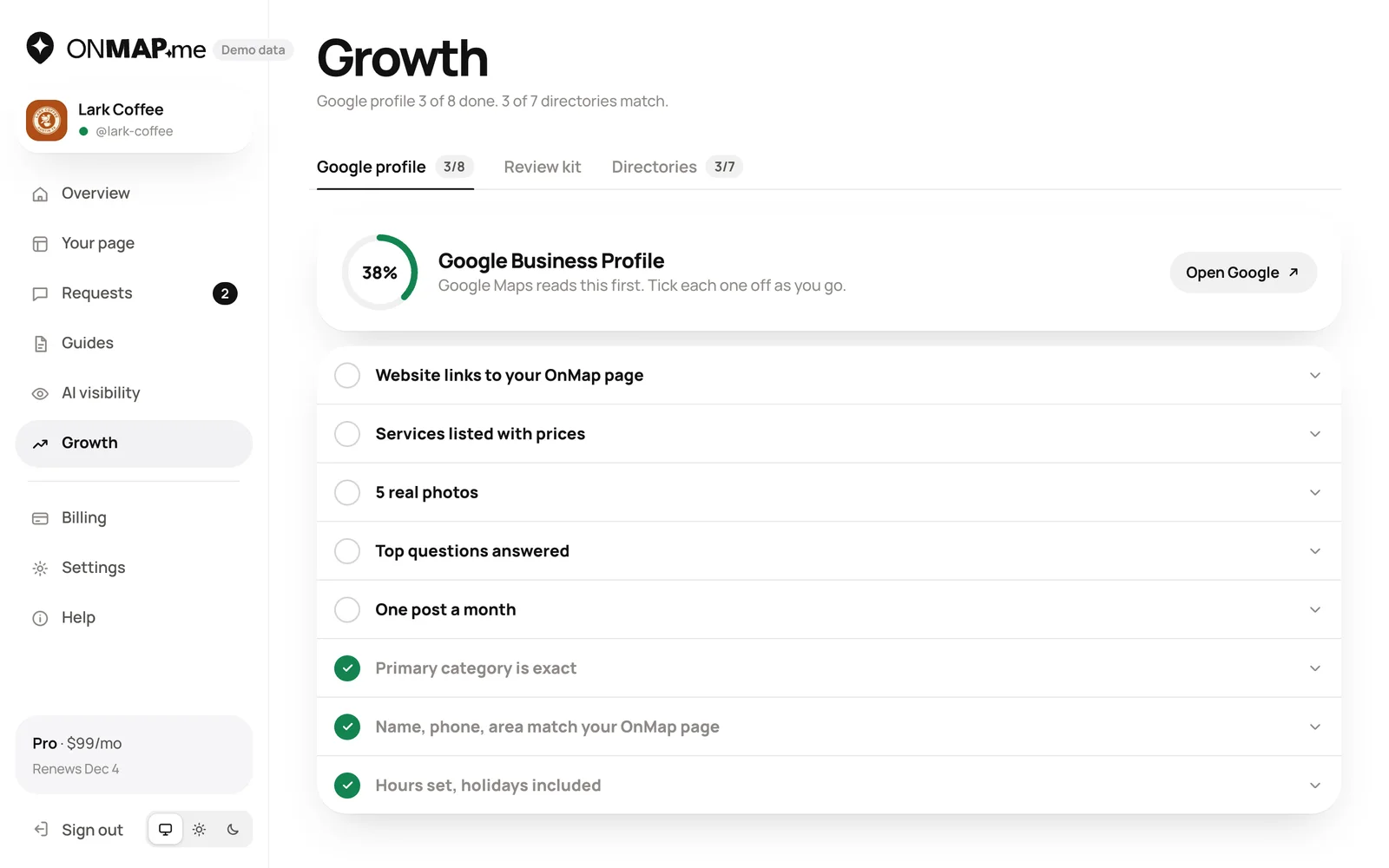
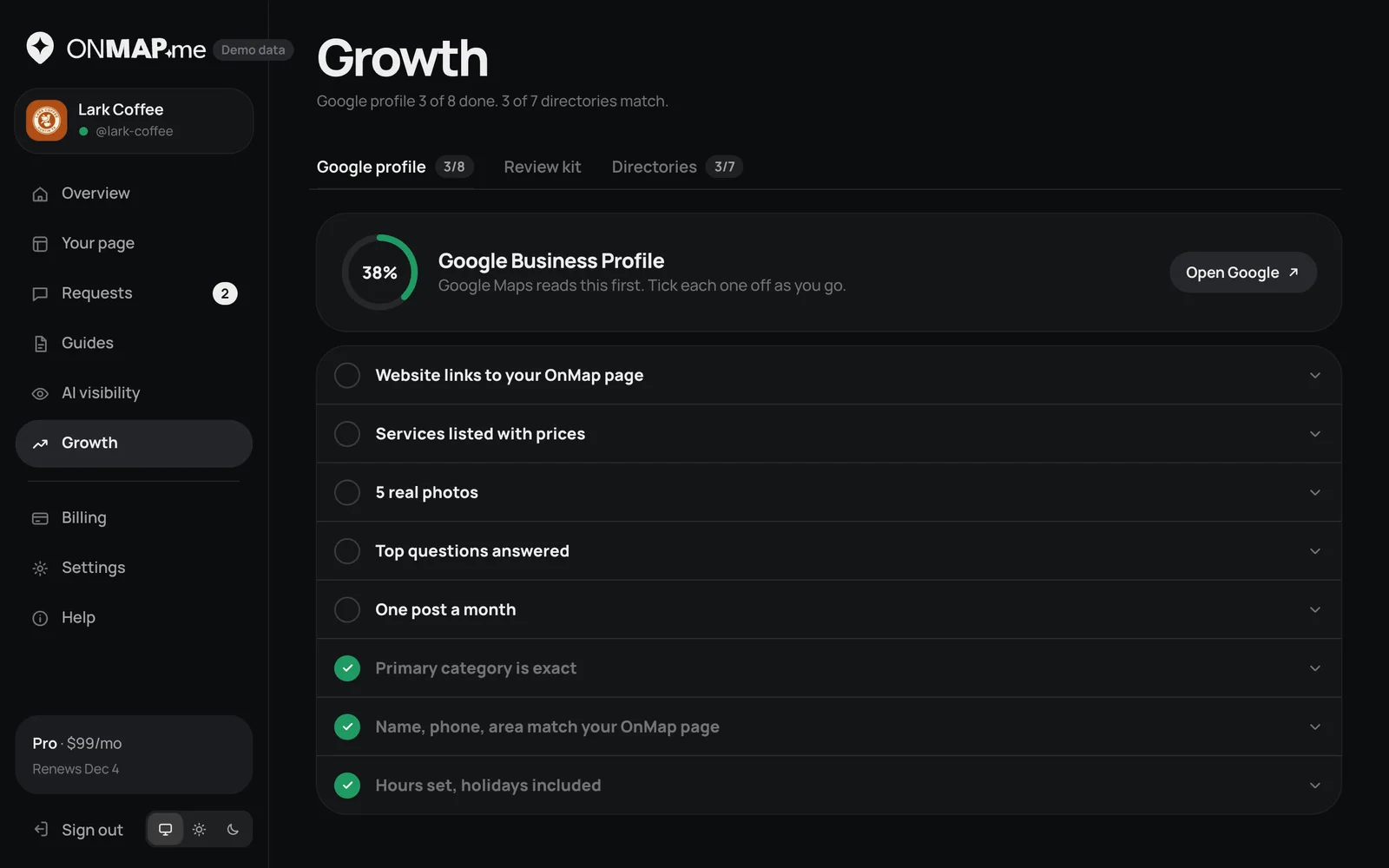
Checklists for the places outside OnMap.me that assistants also read: the Google Business Profile, reviews and directories.
- Tick off each step of the Google profile checklist
- Get a review link and a printable card
- See which directories already match the page
Billing, settings and help
The plan can be changed or cancelled online at any time in Billing. Settings holds the sign-in email, the page's link, email notifications and an optional custom domain. Sign-in uses a 6-digit code sent by email, with no password.
Pick your link. We write the page.
Ready in minutes. Cancel anytime.